WaveToy Demo
Connect to our Cactus Demo to see the simple WaveToy example in action.
Note: This tutorial is, at least in parts, too old and needs an update
Setting up the WaveToy Demo
In this tutorial, through the use of the WaveToy example we describe:
- Compiling and running a simple Cactus application
- Remote monitoring and steering of an application from any web browser
- Streaming of isosurfaces from a simulation, which can then be viewed on a local machine
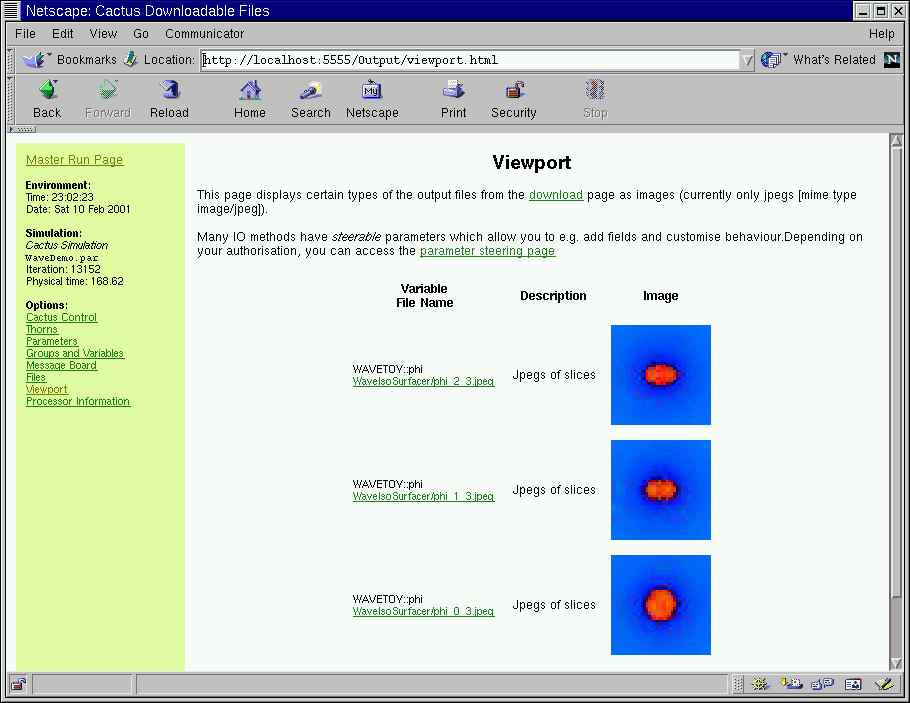
- Remote visualization of 2D slices from any grid function in a simulation as JPEGs in a web browser
If you are new to Cactus or haven’t used some of these tools before, this is a good example to try. Note that you need a C compiler and about 50 MB of free disk space.
WaveToy simulates a 3D scalar field produced by two orbiting sources. The solution is found by finite-differencing a hyperbolic partial differential equation for the scalar field. Though this is a very simple application, it is representative of a large class of more complex systems including those described by Einstein’s Equations, Maxwell’s Equations, and the Navier-Stokes Equations. We use it for demonstration since the simulation is graphical, computationally inexpensive, robust, has simple parameter choices.
Here we do not describe how to checkout and compile this Cactus application. For this, see the primer on the Download page, the HOWTOs or the User’s Guide. We assume that you are checking out Cactus using CVS and that you have the configuration options set up. If you don’t, hopefully the default configuration will work for you!
Demo with Web Server and Streaming IsoSurfaces
Check out and compile
Check out the source code using the GetComponents script.
wget --no-check-certificate https://raw.github.com/gridaphobe/CRL/ET_2014_11/GetComponents chmod 755 GetComponents ./GetComponents http://cactuscode.org/documentation/tutorials/wavetoydemo/WaveDemo.th
Once the checkout has completed, move into the Cactus directory and compile the application.
cd Cactus
gmake WaveDemo-config gmake WaveDemo
Hopefully there were no errors and you now have an executable, exe/cactus_WaveDemo.
Check that it worked by running the test suites. Type:
gmake WaveDemo-testsuite
and give the default answers to each question.
Run the demo
Download the demo parameter file:
wget http://www.cactuscode.org/documentation/tutorials/wavetoydemo/WaveDemo.par
To start the simulation, run your new executable with the demo parameter file. If you have a single processor, execute:
./exe/cactus_WaveDemo WaveDemo.par
If you compiled with MPI and have a multiprocessor version, you need to use the appropriate MPI command for running.
When the simulation starts, you will see output describing the activated thorns and the scheduling tree.
tg-c305 dstark/Cactus> ./exe/cactus_WaveDemo parfiles/WaveDemo.par
--------------------------------------------------------------------------------

       10
  1   0101       ************************
  01  1010 10      The Cactus Code V4.0
 1010 1101 011      www.cactuscode.org
  1001 100101    ************************
    00010101
     100011     (c) Copyright The Authors
      0100      GNU Licensed. No Warranty
      0101

--------------------------------------------------------------------------------

Cactus version: 4.0.b15
Compile date:   Nov 19 2004 (08:52:01)
Run date:       Nov 19 2004 (08:54:30)
Run host:       tg-c305.ncsa.teragrid.org
Executable:     /home/ac/dstark/Cactus/./exe/cactus_WaveDemo
Parameter file: parfiles/WaveDemo.par
--------------------------------------------------------------------------------

Activating thorn Cactus...Success -> active implementation Cactus
Activation requested for
--->coordbase symbase pugh pughslab pughreduce isosurfacer iojpeg jpeg6b ioutil
ioascii iobasic time wavetoyc cartgrid3d boundary idscalarwavec wavebinarysource
httpd httpdextra socket<---
Activating thorn boundary...Success -> active implementation boundary
Activating thorn cartgrid3d...Success -> active implementation grid
Activating thorn coordbase...Success -> active implementation CoordBase
Activating thorn httpd...Success -> active implementation HTTPD
Activating thorn httpdextra...Success -> active implementation http_utils

  . . .

Activating thorn wavebinarysource...Success -> active implementation binarysource
Activating thorn wavetoyc...Success -> active implementation wavetoy
--------------------------------------------------------------------------------
  if (recover initial data)
    Recover parameters
  endif

  Startup routines
    [CCTK_STARTUP]
    CartGrid3D: Register GH Extension for GridSymmetry
    CoordBase: Register a GH extension to store the coordinate system handles
    GROUP HTTP_Startup: HTTP daemon startup group
      HTTPD: Start HTTP server
      GROUP HTTP_SetupPages: Group to setup stuff which needs to be done
          between starting the server and the first time it serves pages
      HTTPD: Serve first pages at startup
    HTTPDExtra: Utils for httpd startup
    PUGH: Startup routine
    IOUtil: Startup routine
    IOJpeg: Startup routine
    IOASCII: Startup routine
    IsoSurfacer: Startup routine
    IOBasic: Startup routine
    PUGHReduce: Startup routine
    SymBase: Register GH Extension for SymBase
    WaveToyC: Register banner

  . . .

  Termination routines
    [CCTK_TERMINATE]
    IsoSurfacer: Termination routine
    PUGH: Termination routine

  Shutdown routines
    [CCTK_SHUTDOWN]
    HTTPD: HTTP daemon shutdown

  Routines run after restricting:
    [CCTK_POSTRESTRICT]
    WaveToyC: Boundaries of 3D wave equation
    GROUP WaveToyC_ApplyBCs: Apply boundary conditions
      GROUP BoundaryConditions: Execute all boundary conditions
        Boundary: Apply all requested local physical boundary conditions
        CartGrid3D: Apply symmetry boundary conditions
      Boundary: Unselect all grid variables for boundary conditions

  Routines run after changing the grid hierarchy:
    [CCTK_POSTREGRID]
    CartGrid3D: Set Coordinates after regridding
--------------------------------------------------------------------------------
Server started on http://tg-c305.ncsa.teragrid.org:5555/
INFO (what): PUGHReduce
--------------------------------------------------------------------------------
Driver provided by PUGH
--------------------------------------------------------------------------------
WaveToyC: Evolutions of a Scalar Field
--------------------------------------------------------------------------------

INFO (IOJpeg): I/O Method 'IOJpeg' registered: output of 2D jpeg images
               of grid functions/arrays
INFO (IOJpeg): Periodic IOJpeg output every 10 iterations
INFO (IOJpeg): Periodic IOJpeg output requested for 'WAVETOY::phi'
INFO (IOASCII): I/O Method 'IOASCII_1D' registered: output of 1D lines of
                grid functions/arrays to ASCII files
INFO (IOASCII): Periodic 1D output every 10 iterations
INFO (IOASCII): Periodic 1D output requested for 'WAVETOY::phi'

  . . .

INFO (IsoSurfacer): Isosurfacer listening for connections
     host 'tg-c305.ncsa.teragrid.org' control port 7050 data port 7051

  . . .

INFO (PUGH):   Local load: 64000   [40 x 40 x 40]
INFO (PUGH):   Maximum load skew: 100.000000
INFO (Time): Timestep set to 0.00649351 (courant_static)
INFO (IOBasic): Periodic scalar output requested for 'WAVETOY::phi'
INFO (IOBasic): Periodic info output requested for 'WAVETOY::phi'
-------------------------------------------------
   it  |          | WAVETOY::phi                |
       |    t     | minimum      | maximum      |
-------------------------------------------------
     0 |    0.000 | 5.148200e-131 |   0.95066004 |
    10 |    0.065 |-1.319022e-33 |   0.98026627 |
    20 |    0.130 |  -0.30418278 |   1.40297645 |
    30 |    0.195 |-9.120612e-23 |   1.53352239 |
    40 |    0.260 |-4.980518e-19 |   1.76419451 |
    50 |    0.325 |-5.650478e-16 |   2.06547404 |
    60 |    0.390 |-5.221892e-13 |   2.20300711 |
    70 |    0.455 |-3.124912e-10 |   2.39674767 |
    80 |    0.519 |-9.294138e-09 |   2.38699930 |
    90 |    0.584 |  -0.00000002 |   2.38045481 |
   100 |    0.649 |-9.382595e-09 |   2.37422575 |

  . . .
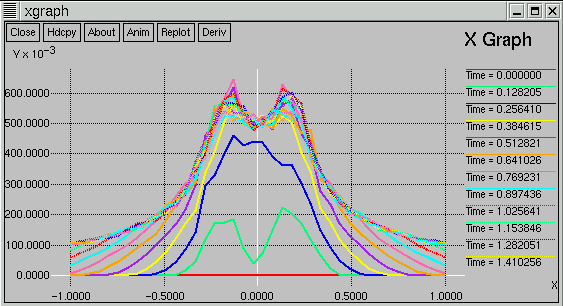
This may take a while. You can look at the 1D output when it is finished if you have the simple visualization client xgraph. After downloading and installing xgraph, issue:
xgraph WaveDemo/phi_x_[20][20].xg
Connecting with a web browser
To connect to the simulation, move to another machine and start up a web browser. Connect to http://<machine name>:5555 where <machine name>:5555 is the name of the machine where the simulation is running. Note that this information was part of the standard output when the simulation started. For example:
Server started on http://tg-c305.ncsa.teragrid.org:5555/
Now you should see a screen with information about the simulation.
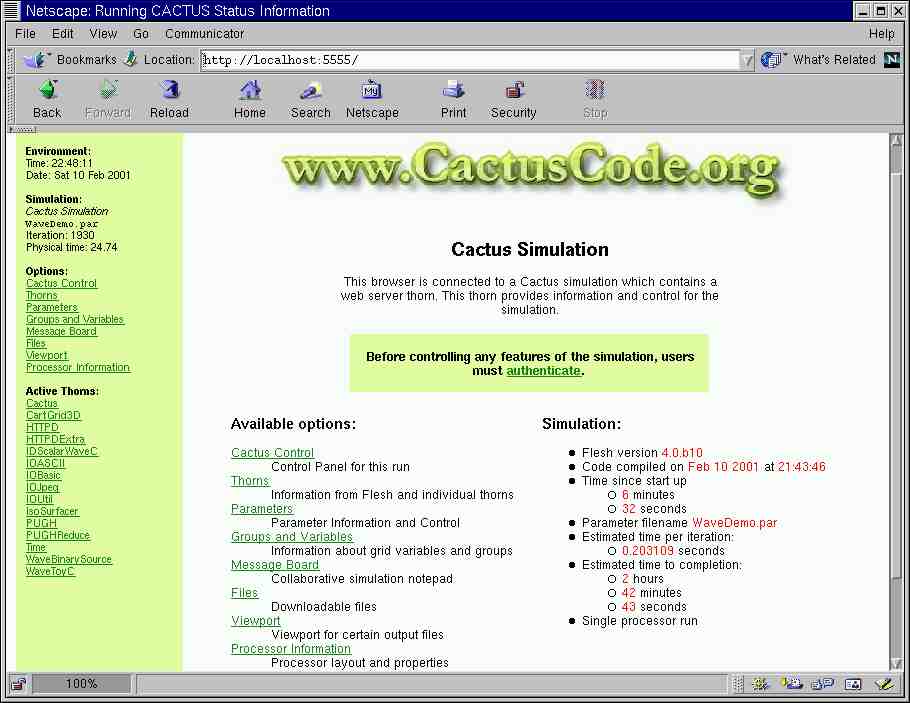
Click through the links to find information about the thorns, parameters and variables you are using. Go to the ViewPort to see JPEG images from the simulation. If you press the refresh button on your browser these will update. Go to the Files page and see some of the output files that are being created. (If you have xgraph installed on your machine you can set up your browser to automatically view these when you click on them. See the WebBrowser-HOWTO for more details).
Viewing IsoSurfaces
Download IsoView, the isosurface visualization client.
Start up IsoView:
IsoView -h <machine name> -dp 7051 -cp 7050
Again, this information can be found in the standard output, for example
INFO (IsoSurfacer): Isosurfacer listening for connections host 'GridRebels-MacBook-Pro.local' control port 7050 data port 7051
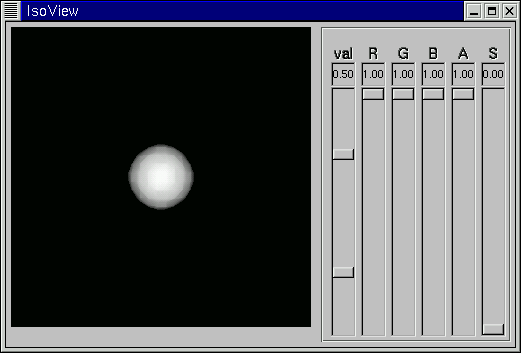
You should now see rotating blobs appearing in the client which should look something like this:
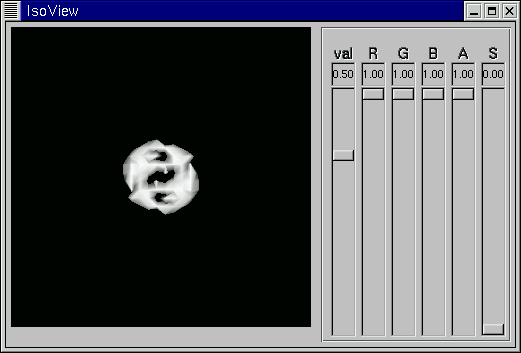
If you move the val slider, the value of the isosurface you see will change. Also, if you move the cursor in the main window, holding down the left, middle and right mouse buttons, the surface will rotate, translate and zoom, respectively.
Steering the Simulation
The web interface can also be used to control the simulation and steer parameter values. Click on the Cactus Control link in the menu and enter the user ID anon and password anon (you can set these to be different values in the parameter file). Now you can pause, run or kill the simulation using the top buttons. If you are using the IsoView client, press pause. The blobs stop rotating:
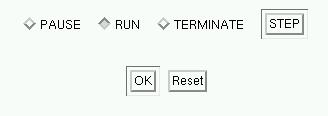
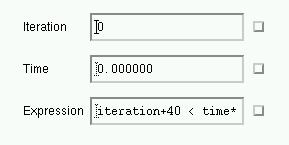
The buttons at the bottom allow you to pause the simulation at a given iteration number, a given time, or when a condition is true. This is just the first version of a control interface; we hope it will become much more powerful and include many interactive debugging and collaborative tools.
To steer simulation parameters, select Parameters from the menu, and
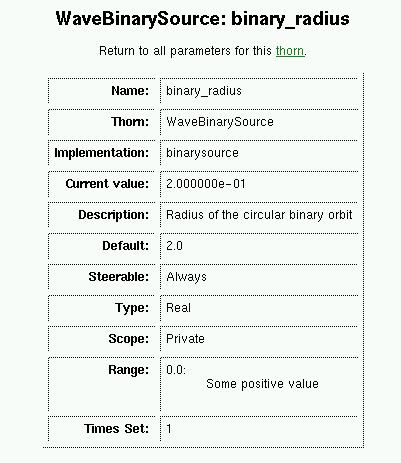
then WaveBinarySource. We will change the parameter binary_radius,
which sets the distance between the orbiting sources. Note that the
parameters are divided into two sections, depending on whether they are
steerable or not. This is decided by the thorn author.
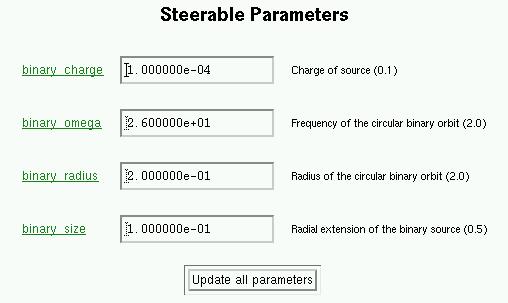
Note that if you click on a parameter name, you get all the known information about that parameter.
Steer the parameter by changing the value in the box to 0 and pressing the update button. If you are watching the isosurfaces, you should see the blobs move together. This can take a while since the isosurfaces are of the field and not the sources and the field takes time to catch up.